How to manage subscriptions on Mac and iPad
The short answer: on a Mac, open the App Store, click your name at the bottom of the sidebar, click your name again, then Subscriptions. On iPad, it's Settings → your name → Subscriptions. Both lists only show what Apple bills — anything you pay a company directly is missing from them.
On a Mac or MacBook
Apple's steps, for any Mac signed in with your Apple Account:
- In the App Store, click your name at the bottom of the sidebar. If you're signed out, click Sign In first.
- On the page that appears, click your name again. You may be asked to sign in.
- Click Subscriptions, then the subscription you want to change.
- Click Cancel Subscription to stop it. No Cancel button, or an expiry message in red, means it's already cancelled.
On iPad
- Open Settings and tap your name.
- Tap Subscriptions, then the subscription.
- Tap Cancel Subscription — you may need to scroll down.
What Apple's list can't show you
Apple can only list what Apple bills: subscriptions you started inside an app. Anything you signed up for on a company's own website — streaming, the gym, a meal kit, software, broadband — and pay by card, Direct Debit or PayPal is with that company. It isn't in the list above, and the only record is your statement. Those are the ones that get forgotten.
Outflow for Mac and iPad
Outflow keeps every subscription in one list — Apple's and everyone else's — on your iPhone, iPad and Mac. It's the same app on all three, so on a Mac it opens in a window with a sidebar, the way it looks on iPad.
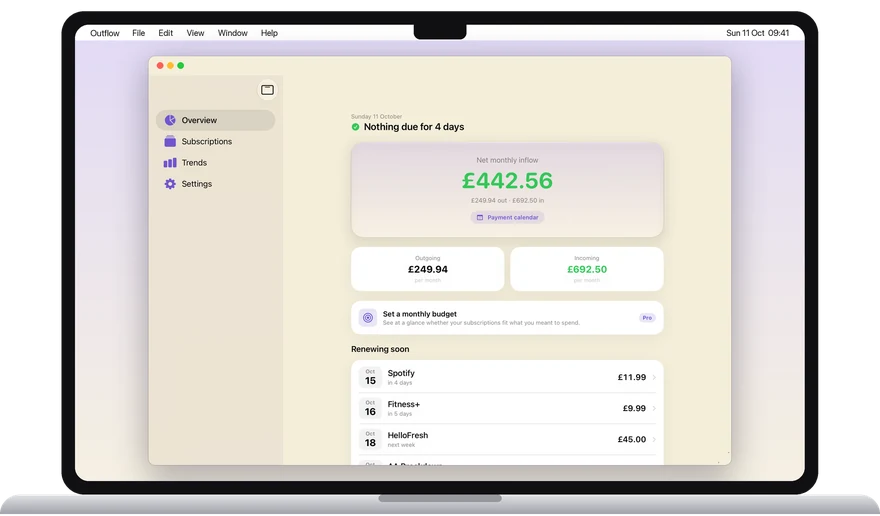
- Everything in one list, whatever it's billed through, with what it costs you a month and a year.
- A reminder before each renewal and before a free trial turns into a charge.
- Where to cancel each one — Apple, PayPal, the company's own account page.
- Paste a statement or receipt and Outflow finds the subscriptions in it, on your device.
- Your latest list on every device: turn on iCloud Backup and Outflow on your Mac or iPad picks up your most recent list from your own iCloud when it opens.
- No bank login, no account, no tracking. Free for up to five subscriptions; Pro is one purchase that covers your iPhone, iPad and Mac — never a subscription.
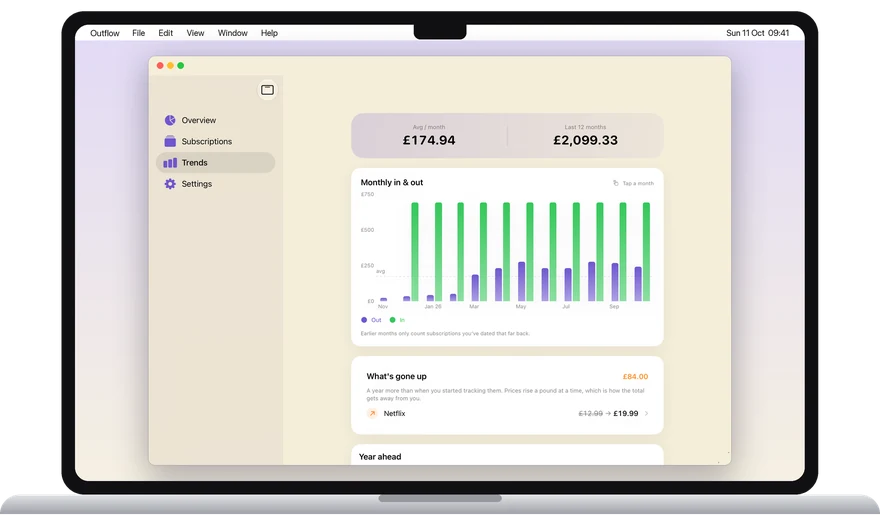
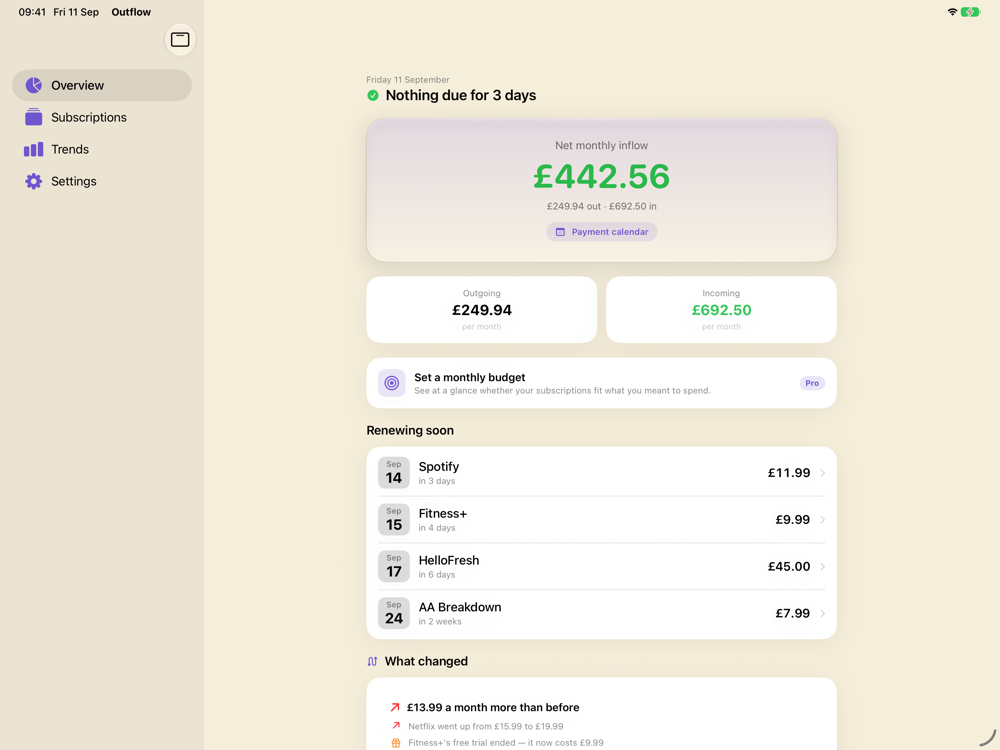
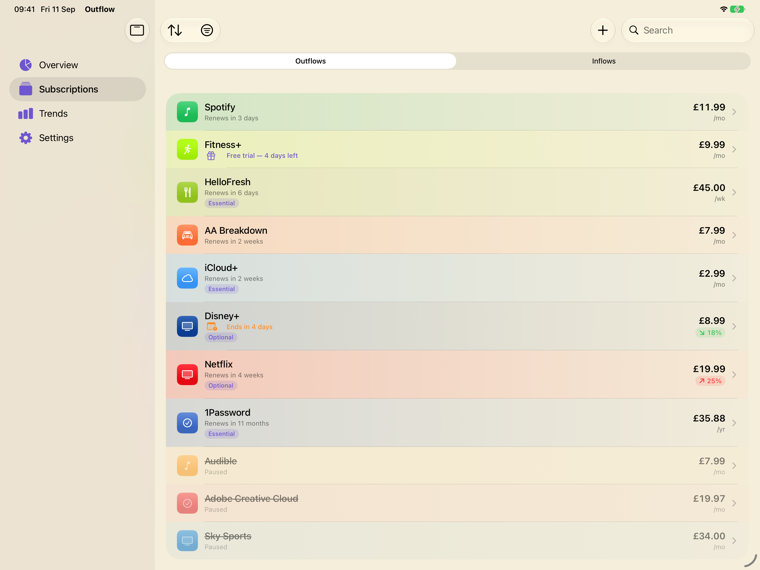
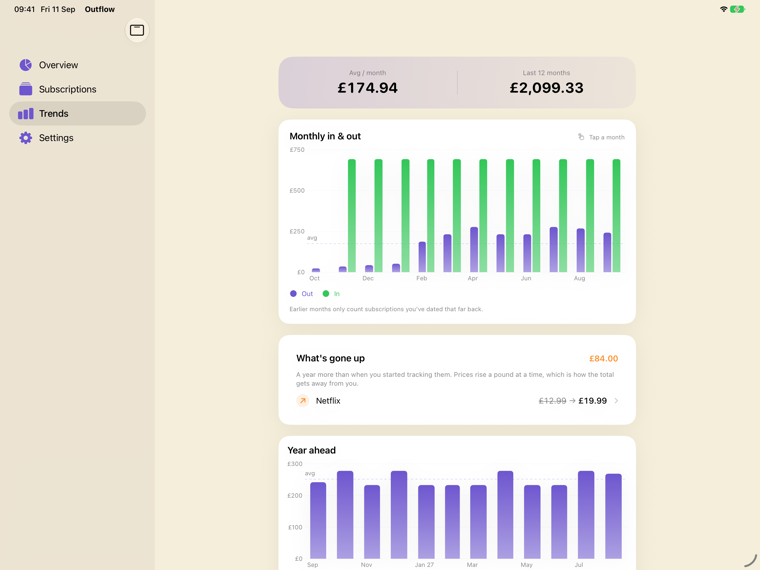
Mac: a Mac with Apple M1 chip or later, macOS 15 or later. Find it in the Mac App Store by searching for Outflow, or use the link below on your Mac.
iPad: iPadOS 18 or later.
On a computer? Scan with your iPhone camera to get Outflow — free, no account, nothing leaves your phone.
Questions people ask
How do I see my subscriptions on a Mac?
App Store → your name (bottom of the sidebar) → your name → Subscriptions. It shows what Apple bills; ones you pay a company directly don't appear.
How do I cancel a subscription on a MacBook?
In that list, click the subscription, then Cancel Subscription. Anything not in the list is cancelled with the company you pay — our guide to where to cancel covers the common ones.
Why isn't a subscription in my Apple list?
Because Apple only lists what it bills. If you signed up on the company's website, it's with them: check your card or bank statement, or let our free subscription finder spot the repeating charges, in your browser with nothing uploaded.
Is there a subscription tracker app for Mac?
Yes — Outflow runs on Apple silicon Macs as well as iPhone and iPad, with nothing to sign up for. On the Mac App Store it's listed as "Designed for iPad", because it's the same app.
Sources: Apple Support, Cancel a subscription from Apple, checked 11 October 2026; Mac and iPad requirements from Outflow's App Store listing on the same date. Menu names can change between macOS and iPadOS versions. Apple, Mac, MacBook, iPad and App Store are trademarks of Apple Inc.; Outflow is not affiliated with Apple.